Steam is the world's largest digital distribution platform for PC gaming, offering thousands of games, software, and community features. Developed by Valve, it allows users to buy, download, and play games, as well as connect with friends through chat, forums, and multiplayer servers. Steam also provides cloud saves, automatic updates, and a marketplace for in-game items, making it a central hub for gamers worldwide.
However, access to Steam can sometimes be restricted by network rules or your internet provider. If you’re facing such issues, this guide will show you how to unblock Steam in four simple steps using a proxy. You’ll learn how to choose a reliable proxy, set it up on your device, connect, and start browsing Steam without issues. We’ll also cover common reasons why Steam might be blocked and explain how proxies work to help you stay connected.
Let’s get started!
How to Unblock Steam in 4 easy steps
If Steam is blocked on your network, using a proxy is one of the most effective ways to regain access. Follow these four simple steps to unblock Steam and start gaming again.
Step 1: Choose a proxy
To bypass Steam restrictions, you’ll need a reliable proxy service. Webshare provides 10 free proxies without requiring a credit card, making it a great option. These proxies mask your real IP address, allowing you to access Steam even if it’s blocked on your network.
- Go to Webshare’s Free Proxy page.
- Sign up for a free account.
- Get your free proxy credentials (IP, port, username, and password).
Once you have your proxy details, the next step is setting it up.
Step 2: Set up the proxy
For Chrome (Webshare Proxy Extension)
The easiest way to configure a proxy in Chrome is by using the Webshare Proxy Extension. Here’s how to set it up:
- Install the extension: Go to the Webshare Chrome Proxy Extension. Click Add to Chrome, then confirm by clicking Add Extension when prompted.
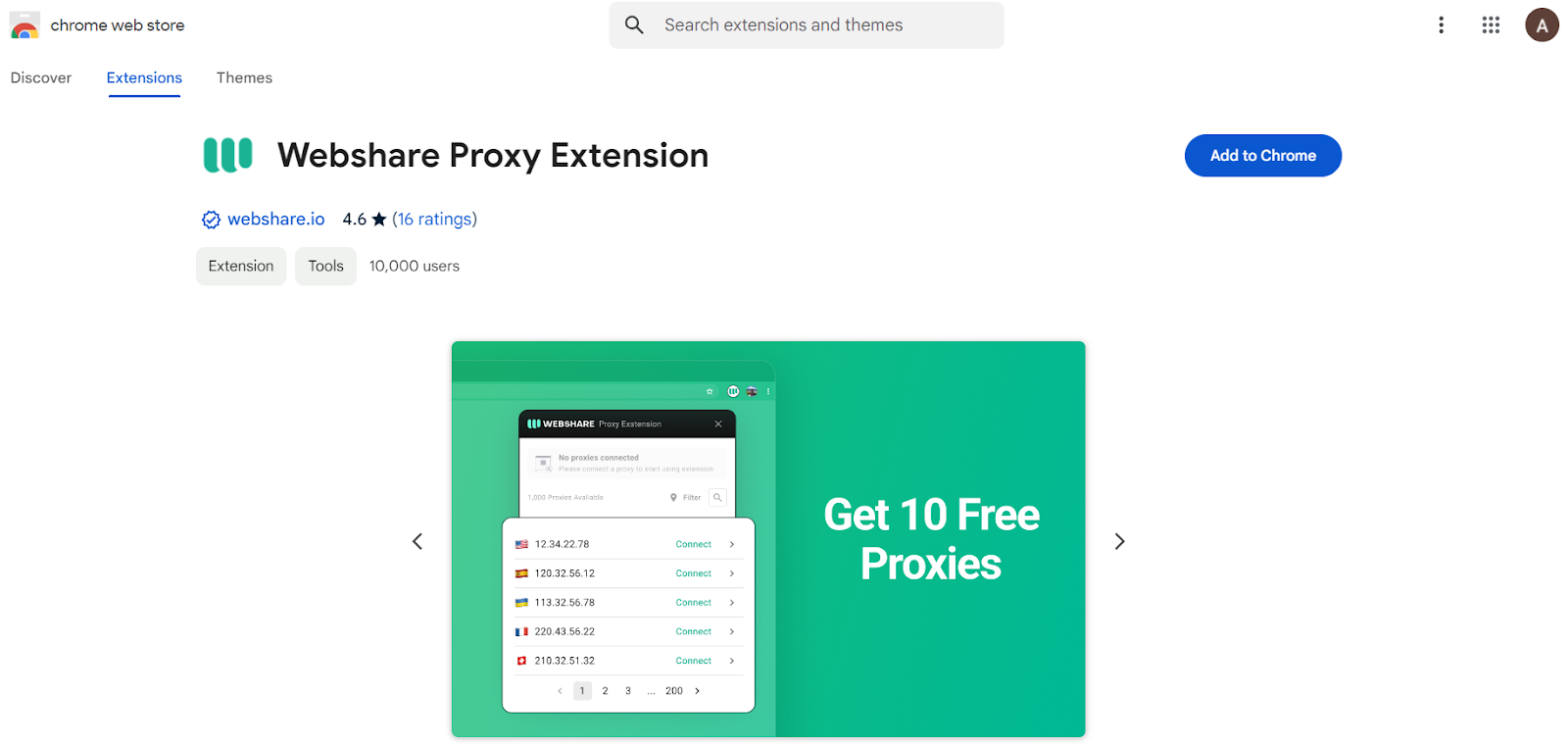
- Open the Extension: Click the Extensions button (next to your profile picture in the top-right corner). Locate the Webshare extension and pin it for easy access.
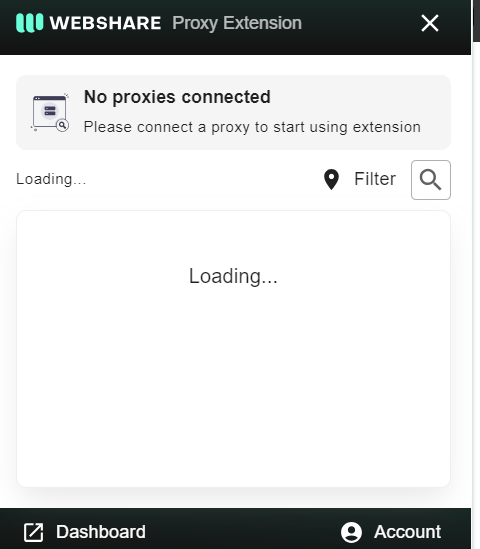
- Enter Proxy Details: Log in to your Webshare account. If no proxy is connected, you’ll see a message at the top saying No proxies connected. This means you haven’t connected to a proxy yet.
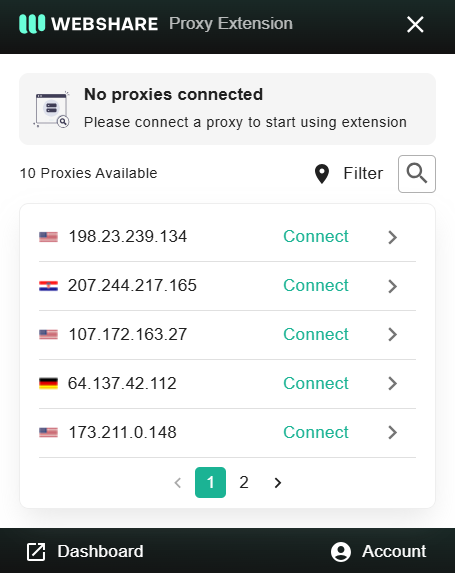
If you're a new user, you’ll find a list of 10 free proxies with flags and IP addresses indicating their geographic location.
For Firefox, Mac and iOS
For other platforms, follow these setup guides:
- Firefox: The easiest way to manage proxies in Firefox is by using FoxyProxy, a browser extension that simplifies switching between proxies. Follow Webshare’s FoxyProxy setup guide for step-by-step instructions.
- Mac: To route all network traffic, including Steam, through a proxy, configure a system-wide proxy on macOS. Detailed instructions are available at Webshare’s Mac proxy setup guide.
- iOS: On iPhone and iPad, proxies can be configured directly in Wi-Fi settings. Learn how to set up a proxy on iOS with Webshare’s iOS proxy configuration guide.
Step 3: Connect to the proxy
Once the proxy is set up, it’s time to connect:
- For Webshare’s Chrome extension: Click Connect next to the proxy IP you want to use. Once connected, the proxy details will appear at the top of the extension. You can switch between proxies or disconnect at any time. A green dot on the Webshare extension icon confirms that your proxy is active.
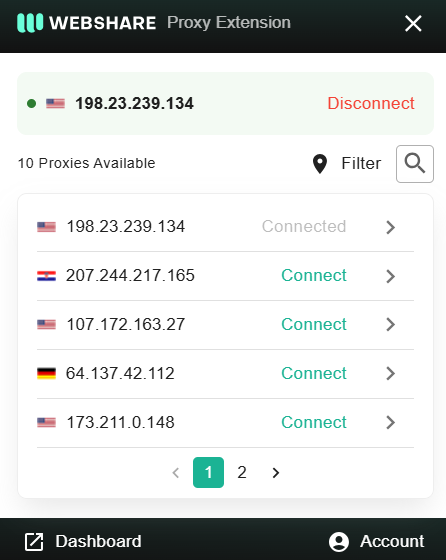
If a red dot appears, it means there’s a connection issue. Click Disconnect and try reconnecting to resolve it.
- For manual configuration (Firefox, Mac, or iOS): Ensure the proxy settings are active in your system or browser settings.
To confirm the connection, open a new tab and visit IPInfo to check if your IP address has changed.
Step 4: Go to the Steam website
Now that your proxy is active:
- Open Chrome, Firefox, or Safari.
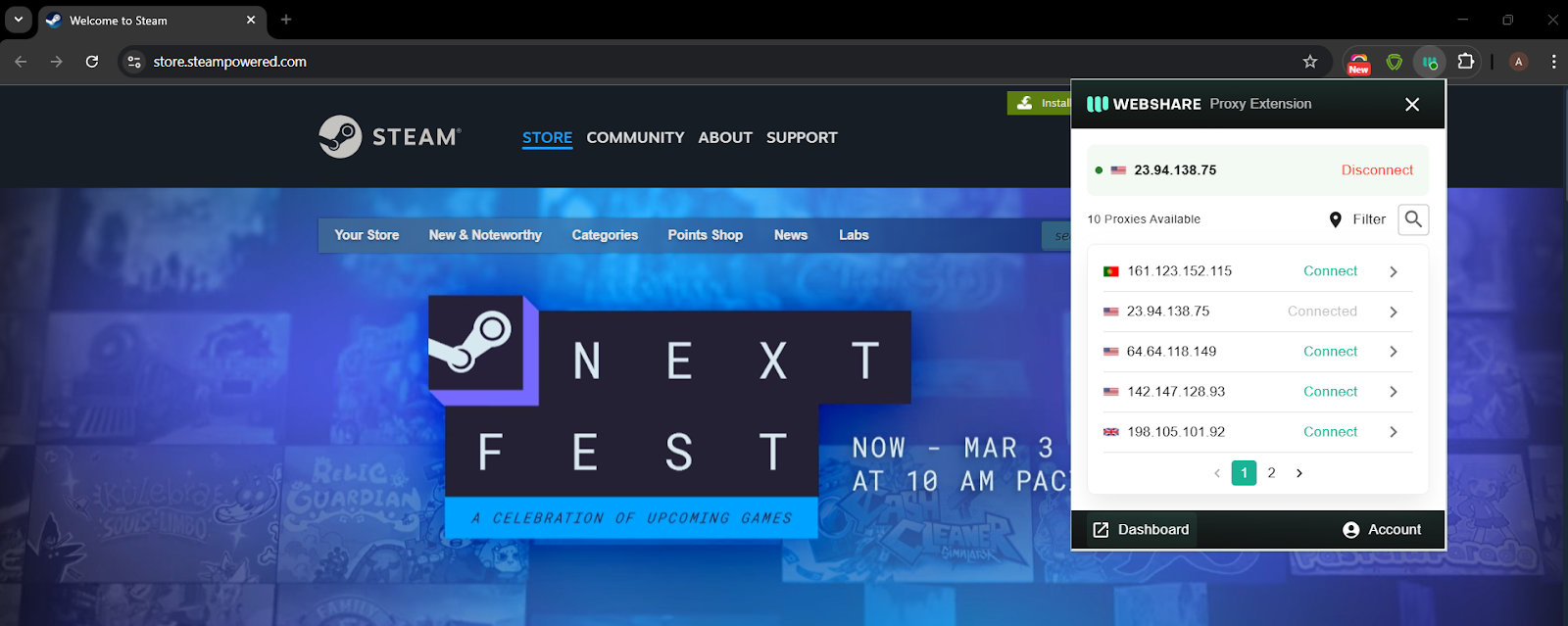
- Go to store.steampowered.com.
- If the proxy is working correctly, the Steam website should load without restrictions.
Why have I been blocked from Steam?
Understanding the reasons behind being blocked from Steam can help you address the issue and prevent future occurrences. Here are some common reasons:
Multiple failed login attempts
If you enter an incorrect password multiple times in a short period, Steam's security system may temporarily block access to protect your account from unauthorized attempts. This can also happen if someone else tries to log into your account from a different location. If your account gets locked due to failed login attempts, you may need to reset your password or verify your identity before regaining access. Steam recommends enabling two-factor authentication (Steam Guard) to add an extra layer of security and prevent accidental lockouts.
Network restrictions by institutions or ISPs
In some cases, users are blocked from accessing Steam due to external network restrictions rather than personal violations. Schools, workplaces, or public Wi-Fi networks may block gaming platforms like Steam to prevent distractions or conserve bandwidth. Additionally, some internet service providers (ISPs) restrict access to Steam in certain regions due to government regulations or content policies.
What is a proxy server for Steam?
A proxy server for Steam acts as an intermediary between your device and Steam’s servers, routing your connection through a different IP address. This can help bypass network restrictions and improve privacy.
Common uses of a proxy server for Steam are:
- Bypassing Network Restrictions: If Steam is blocked on your network, a proxy can help regain access.
- Reducing Latency: Some proxies optimize routing to reduce lag and improve connection stability.
- Enhancing Privacy: Proxies help hide your real IP address, reducing tracking and potential threats.
Wrapping up: Unblocking Steam with a proxy
If Steam is blocked on your network, a proxy is an effective way to regain access. By choosing a reliable proxy (like Webshare proxy), setting it up correctly, and ensuring a stable connection, you can browse and play without restrictions. Just be mindful of Steam’s policies to avoid potential account issues.